Disclosure: The Stack Guidebook is reader-supported. When you buy through links on our site, we may earn an affiliate commission. Learn more in our Affiliate Disclosure.
Quick Answer
If you record podcast or video interviews with remote guests and then pass files between a recorder, an editor, a transcription tool and a clip maker, most of the lost time sits in the hand-offs between those steps. StreamYard can cover recording, trimming, transcripts, sharing and short vertical clips in one browser-based account. The Free plan lets you test it with limited local recording, the Core plan removes the local recording limit and increases the AI clips allowance, and the Advanced plan adds 4K local recording and transcript downloads.
Try it first: Start with StreamYard’s free plan and record one interview to see how the workflow fits.
The Problem: One Interview, Five Hand-Offs
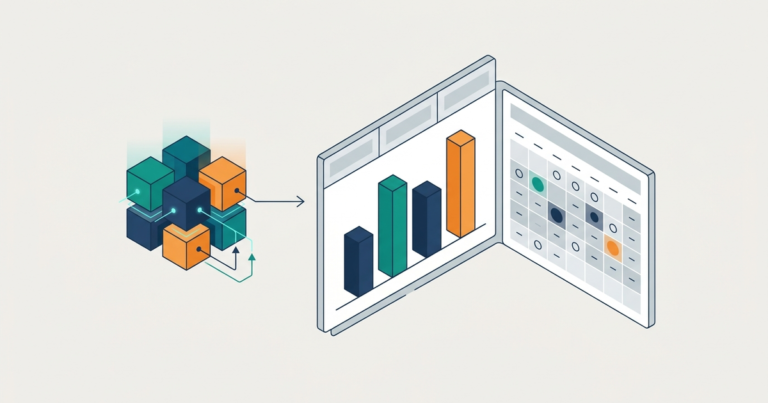
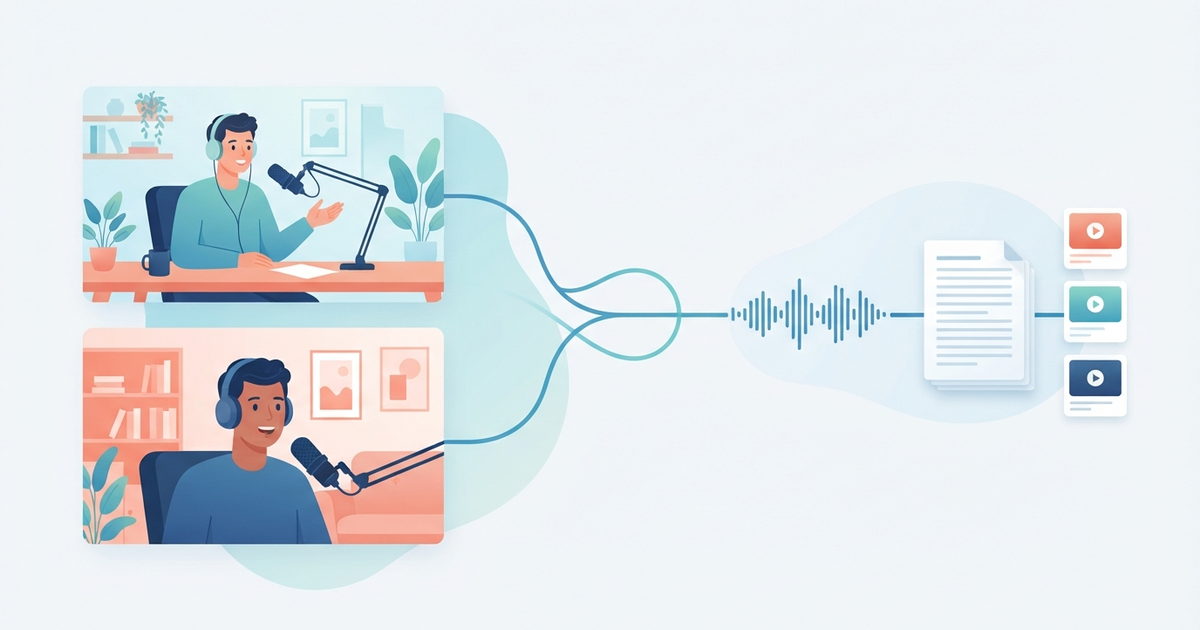
A typical remote interview for a solo creator or small marketing team goes like this: the guest joins a call, the audio drops for a few seconds, someone asks the guest to send a separate recording, the files go to an editor, the edited file goes to a transcription service, and someone else cuts a few short clips for social media. Each step lives in a different tool or inbox. When only one or two people run the whole show, those hand-offs, not the editing itself, are what stretch one interview across several days.
What “Solved” Looks Like
A remote guest’s recording is far less affected by connection problems, as long as the connection holds long enough for the file to finish uploading. The raw recording, a rough edit, a transcript and a handful of short clips are all produced from the same place, and teammates or the guest can watch the result through a link instead of a file transfer, with feedback gathered by email or chat. The whole cycle can be run by one or two people without specialist editing skills.
What Your Setup Needs to Do
- Record remote guests’ audio and video at high quality
- Shorten the editing work
- Produce transcripts or captions
- Share recordings with teammates and guests for review
- Turn a long recording into short clips
How StreamYard Covers Each Need
According to StreamYard’s official pricing page and help center:
| Need | How StreamYard handles it |
|---|---|
| High-quality remote recording | Local recordings are individual audio and video files recorded on each host’s and guest’s device, so the saved file is much less affected by a weak internet connection. Participants should stay in the studio until their recording finishes uploading, since a dropped connection during upload can still cause problems. Each participant’s audio can be downloaded as a separate WAV file, and video as a separate file. |
| Shorter editing | Recordings can be trimmed and split in the browser, which covers cutting dead air and dividing a long session into segments. StreamYard is not a full multitrack editor; for detailed audio mixing you may still export the individual tracks to your editor. |
| Transcripts and captions | Transcripts are generated automatically for cloud recordings and can be viewed in the editor on paid plans; downloading them as .txt or .vtt files requires the Advanced plan or higher. Captions are added automatically to Shorts and Reels. The help center notes that transcripts and these captions cannot currently be edited inside StreamYard, and that captions for Shorts and Reels are English only; AI clips list support for more languages. |
| Sharing for review | On paid plans, recordings can be shared through a link from the recordings dashboard for viewing. StreamYard’s help center does not describe comments or approvals on shared links, so collect feedback by your usual channel. Giving teammates their own access to the video library through Admin roles depends on having extra seats, which StreamYard’s help center ties to business plans. |
| Short clips | AI clips analyze a recording and generate vertical (9:16) captioned clips with a title. You can adjust each clip’s length and caption style before exporting. |
Step 1: Set Up the Studio Before the Guest Arrives
Set the studio resolution first: the help center explains that local recording resolution follows the studio’s camera resolution, so set it to 1080p if you want 1080p files. Send the guest link, and ask the guest to join from a laptop browser with a wired or stable connection. Because each person’s file is recorded on their own device, you no longer need to ask the guest to run a separate recorder.
Step 2: Keep Each Person’s Track Separate
After the session, download the individual files you need. Separate tracks let you fix one person’s volume or noise without affecting the other speaker. If the conversation only needs light cleanup, trim the start and end and split any segments directly in the browser instead of opening a separate editor.
Step 3: Create the Transcript for Show Notes
Open the recording in the library to generate the transcript. On the Advanced plan or higher, download it as text for show notes or as a .vtt file for captions; on Core, you can read it in the editor. Transcripts are generated for cloud recordings of at least one minute. Proofread the text before publishing, since it cannot be corrected inside StreamYard.
Step 4: Send a Review Link Instead of a File
Share the recording link from the dashboard with your co-host, client or guest so they can watch the episode before it goes live, and gather their notes by email or chat. If a teammate needs their own access to the video library, that requires an Admin seat on a business plan; on the individual plans, the account owner downloads and shares the files.
Step 5: Turn the Episode Into Short Clips
Run AI clips on the finished recording to get vertical captioned clips for Shorts, Reels or TikTok. Review each suggestion, extend or shorten the clip if the key moment is cut off, and match the caption style to your brand. The Free plan includes a small number of clips per month and keeps the StreamYard logo; paid plans let you use your own logo.
What You’ll Pay
According to StreamYard’s official pricing page:
| Plan | Price shown (per month) | What it adds for this workflow |
|---|---|---|
| Free | $0 | Local recording limited to 2 hours per month, limited AI clips, StreamYard branding |
| Core | $44.99 billed monthly, or $35.99 billed annually | Unlimited local recording up to Full HD (1080p), a larger AI clips allowance, recording storage |
| Advanced | $88.99 billed monthly, or $68.99 billed annually | 4K local recording, transcript downloads, more backstage participants |
If you need downloadable transcripts for show notes, choose Advanced: the pricing page lists “Download transcripts” only on that plan. Paid plans list a 7-day free trial, and the listed plans are for individual accounts; team seats are covered by StreamYard’s business plans.
See StreamYard pricing to compare Core and Advanced for your recording volume.
When StreamYard Isn’t the Right Fit
- You need detailed multitrack audio editing. StreamYard’s in-browser editing focuses on trimming and splitting. If each episode needs careful mixing, plan to finish the audio in a dedicated editor using the exported tracks.
- You need editable transcripts, or Shorts and Reels captions in a language other than English. The help center lists these as current limitations.
- Recording quality is your only priority. Recording-focused tools such as Riverside or Zencastr are worth comparing if you care most about the recording itself and less about clips and sharing in one place.
Summary
Most of the time lost on remote interviews goes into moving files between tools. With StreamYard, each person’s audio and video is recorded locally, trims, transcripts and vertical clips come from the same recording, and reviewers watch the episode through a link while notes come back by email or chat. Test the workflow with one interview on the Free plan, then move to Core or Advanced based on how much you record and whether you need 4K or downloadable transcripts.
Next step: Record your next interview with StreamYard’s free plan, then run AI clips on it to see how many short videos you get from one session.
Product features, plan limits, and prices change over time. Always confirm current details on the official StreamYard website before making a purchase decision.