Disclosure: The Stack Guidebook is reader-supported. When you buy through links on our site, we may earn an affiliate commission. Learn more in our Affiliate Disclosure.
Prices and features checked against official pages: October 2026.
Quick Answer
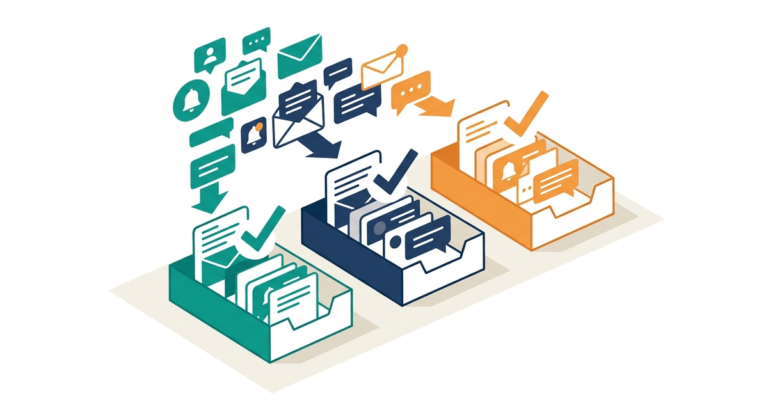
When pre-sale and support questions reach a small team through a website chat, a social inbox and email, nobody is sure who is answering what, and customers repeat themselves when a teammate takes over. The fix is to give every conversation one owner and one history. LiveChat is one way to do that for website chat: its pricing page lists manual and automatic chat routing, chat transfers, canned responses, tags and Facebook Messenger as an included channel on every plan. Two limits matter for a team. The Starter plan is listed for 1 user, so two or more people need the Team plan at $49 per person per month billed annually ($59 monthly). And the pricing table lists WhatsApp, Instagram and email as “available in the marketplace”, meaning they are added through separate apps, not switched on by default; SMS and Apple Messages for Business appear on the Business plan card.
Start LiveChat’s 14-day free trial
The pricing page states a free 14-day trial with no credit card required.
Why Do Customer Conversations Go Unanswered in a Small Team?
They go unanswered because no one owns them. A question arrives in the website chat, another in a social inbox, a third by email, and each teammate assumes someone else has picked it up. When a colleague does take over, the earlier messages are in a different place, so the customer has to explain the order number and the problem again.
For a team of two to five people who also do sales, billing and product work, the cost is not only slow replies. A pre-sale question that sits unanswered can end without a purchase, and support questions answered twice by two people waste time the team does not have.
What Does “Solved” Look Like?
Each conversation has one named owner from the first message, and anyone who takes it over can read what was already said. Routine questions are answered with a saved reply instead of being typed again. At the end of the week, the team can see how many chats came in, how fast they were answered and which ones were missed.
What Does a Team Chat Setup Need?
It needs five things: a way for customers to reach you, one place to see conversations, a clear owner for each one, faster answers to routine questions, and a record you can measure.
- A chat widget on the website that customers can use without creating an account
- One shared place where the team sees incoming conversations from each channel
- Assignment of every conversation to one person, and a way to hand it over with notes
- Saved replies or automation for routine questions
- Searchable history and reports on response performance
How Does LiveChat Cover Each Need?
LiveChat covers website chat, assignment, handover and history directly; extra channels and team-level reporting depend on the plan and on Marketplace apps. According to LiveChat’s pricing and feature pages:
| Need | How LiveChat handles it |
|---|---|
| Website chat without a customer account | The chat widget can be added to as many websites and apps as you want on one license. LiveChat also offers a chat page link that customers can open without any setup. |
| One shared place for each channel | Facebook Messenger is listed on every plan, and messages are answered from within LiveChat. The Business plan card lists SMS and Apple Messages for Business. The pricing table lists WhatsApp, Instagram and email as “available in the marketplace”. How email conversations are handled inside LiveChat is not described on the feature pages, so check the Marketplace app before relying on it. |
| Assignment and handover | Smart (automatic) and manual chat routing and transfers are listed on every plan. With automatic routing, each new chat goes to the first available agent. With manual routing, all agents are notified and one of them picks the chat from the queue. Group organization and internal notes are listed on the Team plan and above. |
| Saved replies and automation | Canned responses are listed on every plan: type a hash sign and suggestions appear. Tags give each chat a topic. The AI Agent shown on the pricing page belongs to Text, a separate product from the same company, so do not count on a chatbot inside the LiveChat plans without checking. |
| History and reports | LiveChat’s chat tools page says all chats are stored and can be found with filters for a phrase, an agent or a time period. Chat history is 60 days on Starter and unlimited on Team and above. The Team plan card lists basic reporting; the Business plan card adds advanced reporting, agent performance and on-demand reporting. |
Step 1: Add the Chat Widget to Your Site
Install the widget on the pages where questions start, such as pricing, checkout and help pages. LiveChat lists integrations for site builders and store platforms including WordPress and Shopify, so a small team can usually add it without custom development. Decide which pages show the widget; LiveChat lets you control this.
Step 2: Choose How Chats Are Assigned
Pick one routing mode and tell the team. Automatic routing suits a team that wants every chat to have an owner immediately: each new chat goes to the first available agent, and the next round starts when everyone has one. Manual routing suits a team where people cover different topics: everyone is notified and the right person takes the chat from the queue. On Team and above, groups let you send chats from a specific page, for example the pricing page, to the people who handle sales.
Step 3: Set a Chat Limit So Nobody Is Overloaded
Set the maximum number of chats one person can handle at the same time. LiveChat describes this limit as a way to protect newer team members. LiveChat’s reports include queued customers, so you can later check how many people waited or left before reaching someone.
Step 4: Hand Over Chats With Context
When a question belongs to someone else, transfer the chat instead of asking the customer to write again. On Team and above, add an internal note first so the next person knows what was promised; LiveChat describes these as private comments in a chat that the customer does not see. The feature page does not state exactly what the receiving agent sees after a transfer, so try one transfer during the trial and confirm the earlier messages are visible.
Step 5: Save Replies and Tag Every Chat
Turn your ten most common answers into canned responses and add a tag to every chat before closing it. Canned responses cut typing for routine questions such as shipping times or plan differences. Tags show what customers ask about, and LiveChat lets you filter reports by tag to compare case types.
Step 6: Review Response Performance Each Week
Once a week, look at total chats, missed chats and response time. The Team plan card lists basic reporting, which is the starting point for a team. Agent performance, advanced reporting and on-demand reporting are listed on the Business plan card, so per-person results and scheduled reports may need Business. The plan cards and the detailed comparison table do not describe every report the same way, so confirm in the trial that the report you need is in your plan.
How Much Does LiveChat Cost for a Small Team?
A team of two or more needs the Team plan, which is $49 per person per month billed annually or $59 billed monthly. According to LiveChat’s official pricing page:
| Plan | Billed annually | Billed monthly | What it means for this workflow |
|---|---|---|---|
| Starter | $19 per month | $25 per month | Listed for 1 user. 60-day chat history. Routing, transfers, canned responses and tags are listed. |
| Team | $49 per person per month | $59 per person per month | Unlimited users. Adds group organization, internal notes, unlimited chat history and basic reporting. |
| Business | $79 per person per month | $89 per person per month | Adds advanced reporting, agent performance, on-demand reporting, a work scheduler, staffing prediction, and SMS and Apple Messages for Business. |
| Enterprise | Contact sales | Contact sales | Custom terms for larger organizations. |
For three people on Team, that is $147 per month billed annually or $177 billed monthly. Channels listed as “available in the marketplace” are separate apps; the pricing table does not show what each one costs, and a third-party messaging provider may charge its own fees. Check each app’s page before budgeting.
When Is LiveChat Not the Right Fit?
LiveChat is a weaker match when chat is not your main channel, when automation matters more than assignment, or when the per-person price is too high for your headcount.
- Most of your questions arrive by email. LiveChat is built around chat, and email is listed as a Marketplace app. A shared email inbox or help desk tool may match your volume better.
- You want chat, tickets and an AI agent in one product. The same company offers Text for that, and other tools such as Tidio or Crisp combine a shared inbox with chatbots. Compare them if automation is your main goal.
- You are a team of one with a tight budget. Starter covers a single user, but there is no free plan, so a free chat tool may be enough until volume grows.
- You need a per-seat cost under the Team price. Every additional person on Team is charged per month, so compare the total for your headcount.
FAQ
Short answers to the plan and channel questions small teams ask before starting a trial, based on LiveChat’s pricing and feature pages.
Does LiveChat have a free plan?
No. The pricing page lists paid plans only, with a free 14-day trial and no credit card required.
Can two people share the Starter plan?
The pricing page lists Starter for 1 user. For two or more people answering chats, the Team plan is the first one priced per person with group organization and internal notes.
Can LiveChat handle WhatsApp, Instagram and email?
Not by default. The pricing table lists WhatsApp, Instagram and email as “available in the marketplace”, so each is added as a separate app. Facebook Messenger is listed on every plan, and SMS and Apple Messages for Business appear on the Business plan card.
Do customers need an account to chat?
No. Customers write in the chat widget on your site or open your chat page link. LiveChat also says customers can leave the site and receive the reply by email.
How long is chat history kept?
60 days on Starter, and unlimited on Team, Business and Enterprise, according to the pricing page.
Summary
Conversations go unanswered in a small team when nobody owns them and the history is scattered. Adding one chat widget, choosing a routing mode, limiting chats per person, handing over with notes, saving replies and checking reports weekly gives every conversation an owner and a record. LiveChat covers this for website chat and Messenger; plan for the Team plan if two or more people answer, check which plan holds the reports you need, and check the Marketplace apps before counting on WhatsApp, Instagram or email. Use the trial to test one transfer and one weekly report with your own team.
Next step: Start LiveChat’s 14-day free trial and route your first week of chats to named owners.
Product features, plan limits, and prices change over time. Always confirm current details on the official LiveChat website before making a purchase decision.